How to Bundle on Poshmark in 2026: A Step-by-Step Guide
by Jasmin Mipaña •May 12, 2026

You’ve got a new Poshmark account and have started adding listings to your closet. The term “bundle” catches your attention. You want to know how to bundle on Poshmark; you’ve heard good things about it and want to give it a try.
Bundling is a strategy to attract buyers to your closet. This works on other reselling websites like Depop and Vinted as well. Poshmark has the bundle feature for both sellers and buyers. If you have never tried bundling items together, here’s exactly how to bundle on Poshmark, step-by-step.
Before you start—what to know
- Bundles are a great way to save on buyer shipping fees when buying from a single seller.
- Bundles can help increase multi-item sales.
- Buyers can also create bundles from your closet.
How to bundle on Poshmark
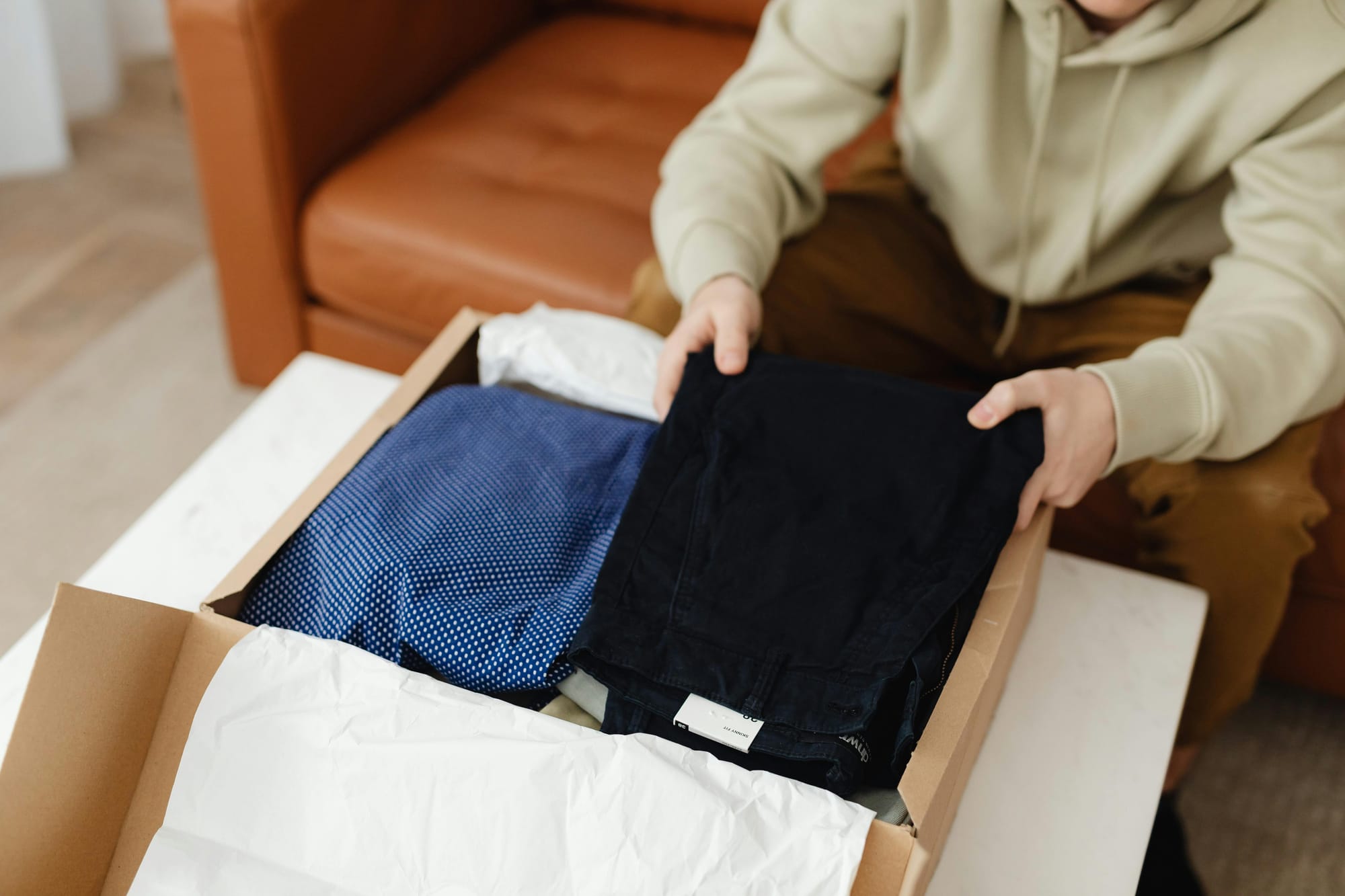
You can add items to a buyer’s bundle, especially the listings they liked from your closet.
How to Make a Bundle on Poshmark in the App
Step 1: Go to the Poshmark app
Log in to your account, then access the Likes tab.
Step 2: Check the buyer’s profile
Tap the buyer’s name from the Likes tab notification. You’ll be taken to the buyer’s profile.
Step 3: Go to the buyer’s bundle
Upon seeing the buyer’s profile, tap the circle icon with the small bag at the top right corner of the screen. This is the buyer's view.
Step 4: Choose “Switch to Sell View”
Tap the three little dots to bring out a menu. Choose Switch to Sell View.
Step 5: Add items to bundle
Scroll down to see the items the buyer liked from your closet. Tap the bag with a plus sign icon to add the item to their bundle. You can add one or many items they liked from your closet.
How to Make a Bundle on Poshmark on Desktop: Seller Version
Step 1: Log in to your Poshmark account
After logging in, click the News icon (the bell) beside your profile picture in the upper-right corner of the screen.
Step 2: Check the Likes
A Filter menu will appear on the left side of the screen. Scroll down and click Likes. You will see the profiles who liked your items.
Step 3: Go to the buyer’s profile
Click the profile picture or the username of the person who liked your listing. You will be taken to their profile page.
Step 4: Go to the buyer’s bundle
Look under the banner and click the photo with the bag beside it (next to the About button). You will be taken to the buyer’s view.
Step 5: Choose “Switch to Sell View”
Click the drop-down menu in line with the buyer’s username and choose Switch to Sell View.
Step 6: Add listings to their bundle
Now that you’re in the seller view, you can see the items they liked. Add the listing to their bundle by clicking the shopping bag with a plus sign. You’ll find it between the heart and the share icon.
Alternatively, you can add an item to a buyer’s bundle by selecting any listing from your closet, selecting Share and selecting the Posher’s username. You can also type a Posher’s username to share the listing faster. This method works for the app and the website.
How to Create a Bundle on Poshmark as a Buyer
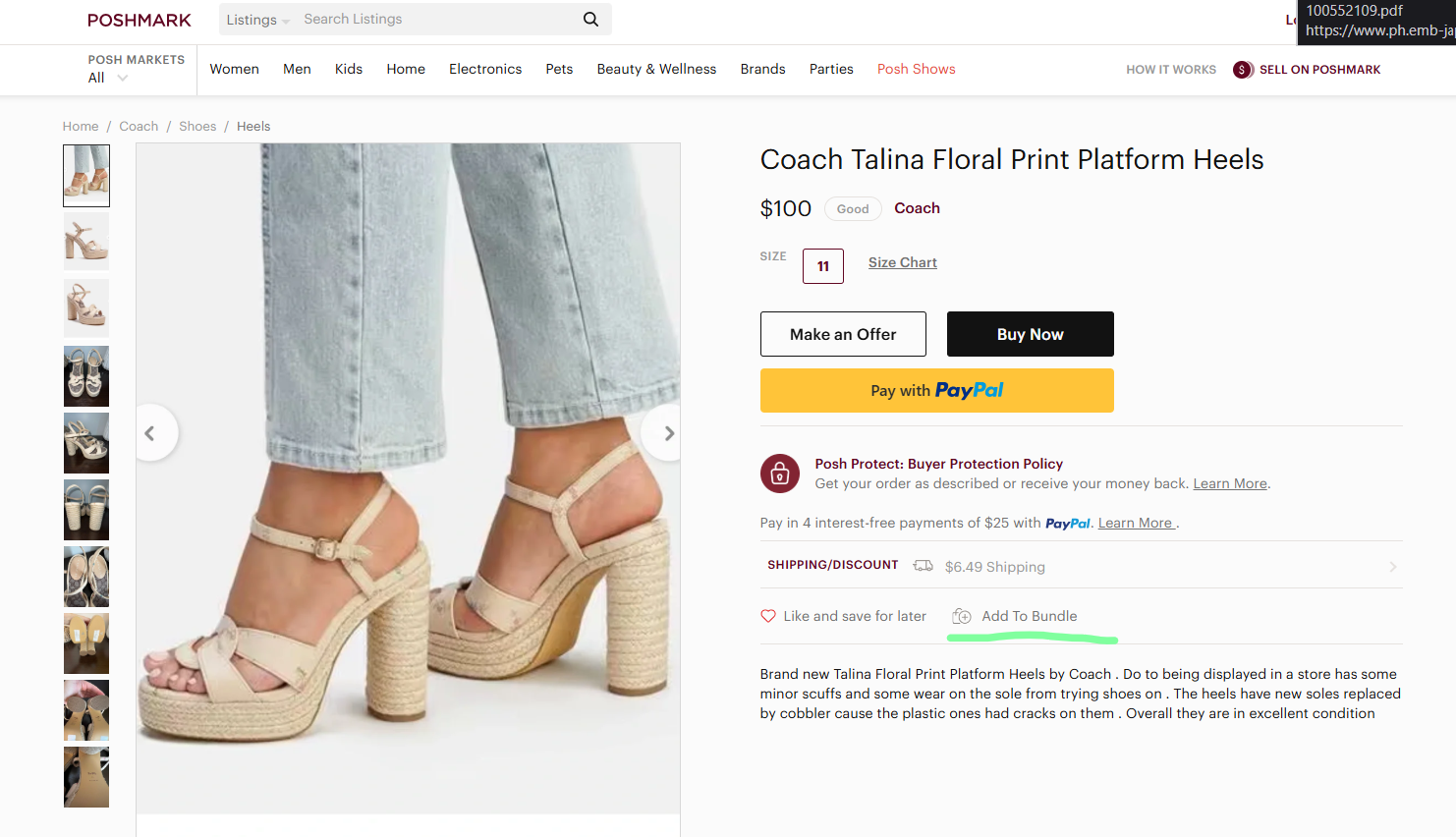
Creating a Poshmark account allows you to buy and sell at the same time. The following steps let you add listings to your bundle as a buyer:
In the App
Step 1: Log in to the Poshmark app.
Once logged in, tap the shopping bag with a plus sign on a listing you like. This automatically creates a bundle for you in that seller’s closet.
Step 2: Visit the Seller profile
You need to see the other listings of the seller to choose items for your bundle. Tap the seller name or profile picture.
Step 3: Add more items to your bundle
Once you’re in the seller’s closet, tap the shopping bag with a plus sign in each listing to add them to your existing bundle.
Step 4: Check your bundled items
Tap the three-dot menu on the upper right corner of the screen. A menu will appear from the bottom. Choose “Bundles from [username].”
Step 5: View your bundle
You will see all bundles created from the seller’s listings. Find your bundle and review items.
In the Web
Step 1: Log in to Poshmark
Log in via your preferred method.
Step 2: Add a Listing to a Bundle
Click a listing, then click Add to Bundle. Repeat for other listings from the same closet.
Step 3: Review your Bundle
Once you’ve had enough items, click the My Bundles button in the top right of the screen. Your items will appear. Click View My Bundle for a detailed view.
Frequently asked questions: how to bundle on Poshmark
Q: As a buyer, can I bundle items from different sellers?
A: No. Bundle shipping and discounts work only if buying from one seller or closet.
Q: Being a seller, what should I do after adding items to a buyer’s bundle?
A: You can make a private offer—either a shipping discount or an item discount.
Q: What’s with some buyers adding only one item to a bundle, but never sends an offer or purchase the item?
A: Buyers often use the bundle feature to keep track of items they want to buy.
Related articles
If you’re looking for more on Poshmark, these guides may help:
Poshmark Fees Explained for Resellers in 2026
How to Activate Poshmark Vacation Mode
How to Delete Poshmark Account in 2026
Bundling on Poshmark becomes easier if you have quality listing titles and descriptions that make your items easier to find. SellRaze makes it easy to generate listings from a single photo—with all the keywords you need to stay visible.